Prisma3D Import 3D Models: a practical guide
Prisma3D import 3D models is the workflow this page covers: export cleanly, choose a supported format, import into the scene, and verify the result in the viewport. It applies whether you are dropping a character into an animation or bringing in a world block for layout. The goal is one clean round-trip, not a week of fixes.
What Prisma3D 3D model import must deliver
A reliable import has to preserve the decisions made in the source app, so you do not rebuild them twice. The checklist below is the bar the app holds an import to.
The import flow itself has four steps, and each one has a clear pass condition.
Export clean geometry
Triangulate meshes and weld coincident vertices in your source app before exporting.
Pick a supported format
Use OBJ for static 3D models, FBX or glTF when rigs and animation matter.
Import into the scene
Use Prisma3D’s import menu, choose the file, and place the asset in the viewport.
Verify and adjust
Check scale, materials, and UVs before you start building on top of the asset.
Each model type you can bring in
Different assets ask for different treatment. These cards map the common workflows; for sculpting from scratch, Prisma3D 3D modeling covers the primitive route.
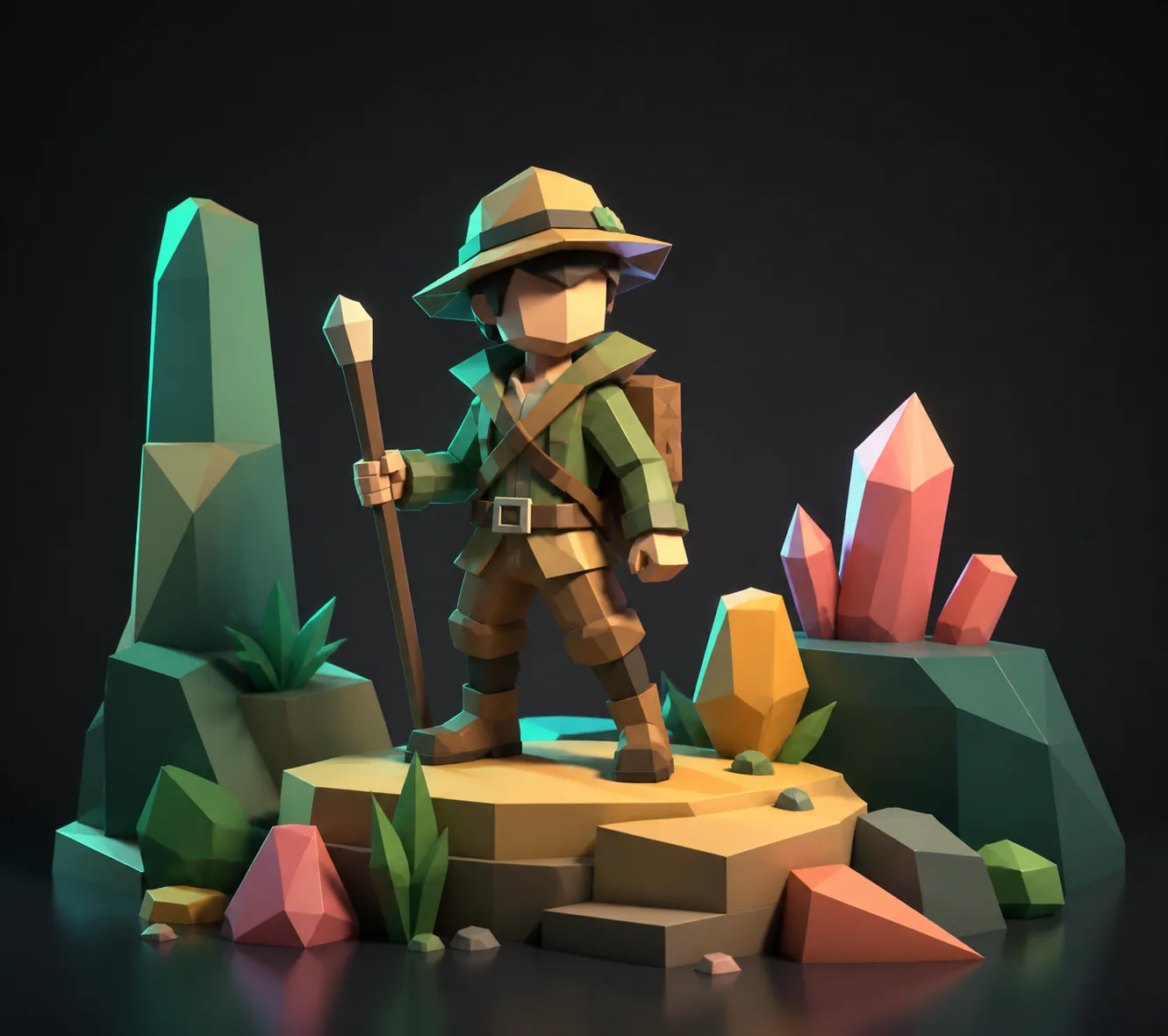
Rigged characters
Exports a hero character from Blender, imports it, and keeps bone weights intact for the animation pass. Start with Prisma3D 3D modeling if you want to build the base mesh in-app.

Modular packs
Imports a pack of kitbashed props, checks each piece for scale drift, and reuses them across scenes. Run the same import online when you are away from the app.
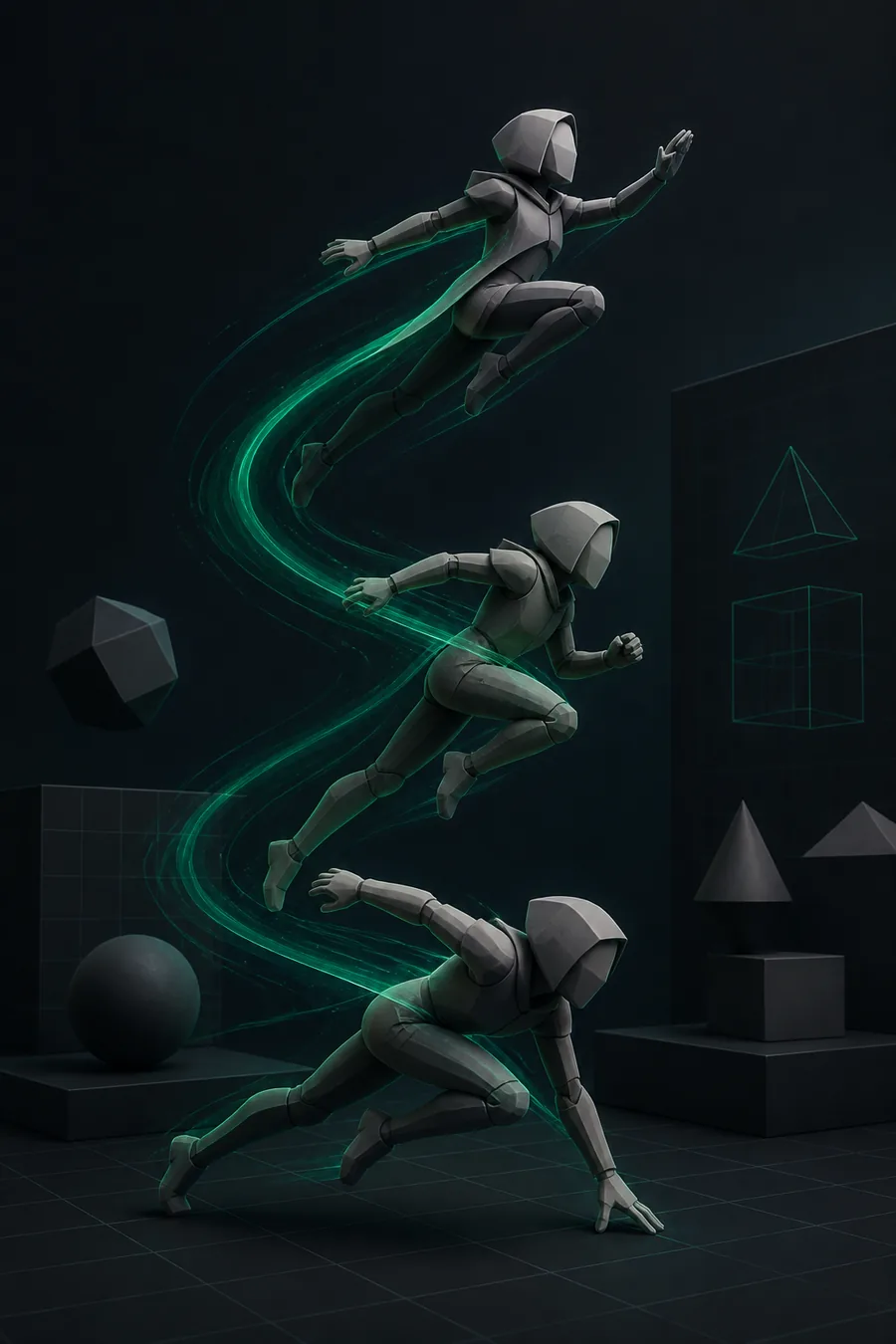
Animated props
Brings in a prop rig with its clips, confirms the bind pose, and keys new motion without re-rigging. Take the Prisma3D animation path to turn that rig into a moving shot.

Hybrid scenes
Mixes imported mechanical parts with primitives, then exports the finished scene for rendering. Use Prisma3D 3D model maker to assemble and finalize the layout.
The quality bar for an accepted import
An import passes when the asset matches the source: same silhouette, same UV layout, same animation hierarchy. Fix the source before export, not after import, and the bar is easy to clear.
The related paths share the same pipeline. The core rule is simple: Prisma3D import 3D models once, cleanly, and the rest of the workflow stays fast.
Common rework when an import falls short
Most rework falls into the same buckets: flipped normals, missing texture links, scale drift, a broken armature, and doubled geometry. The pair below shows the two states of a typical cleanup.
The labelled divider between the two frames is the quality bar: geometry on the left still needs cleanup, geometry on the right is ready for the next step.
In practice, Prisma3D import 3D models hits rework when the source file was never cleaned, so the fix is almost always a re-export. Once the geometry is clean, the Prisma3D animation guide covers rigging the asset for movement.
Prisma3D 3D model import FAQ
A few numbers first, then the questions users ask most.
Can you import 3D models into Prisma3D?
Yes. The app accepts OBJ, FBX, glTF, and the common mesh formats. The import menu keeps the source geometry intact, so you can re-import a corrected 3D model without losing scene work.
Which import formats keep an animation rig?
FBX and glTF carry armatures and skin weights. OBJ is the safest for static 3D models but drops rig data, so match the format to the asset type.
Why does my imported model come in grey?
A grey import usually means texture references did not transfer. Re-link the maps in the app or embed textures before exporting.
How do I fix scale drift after importing?
The app treats one grid unit as one real-world unit. Re-export with the source scale set to match, then check the bounding box in the verify step.