Prisma3D online: create 3D content without installing anything
Prisma3D online brings the full modeling and animation toolset to your browser. Whether you're on a Chromebook, a shared computer, or just don't want another app on your phone, the same core workflow — box modeling, rigging, keyframe animation, and PBR rendering — works in a tab. No account, no download, no file juggling. Open the editor, build something, and export when you're done.
Prisma3D online vs. the mobile app at a glance
What you can do in the Prisma3D online editor
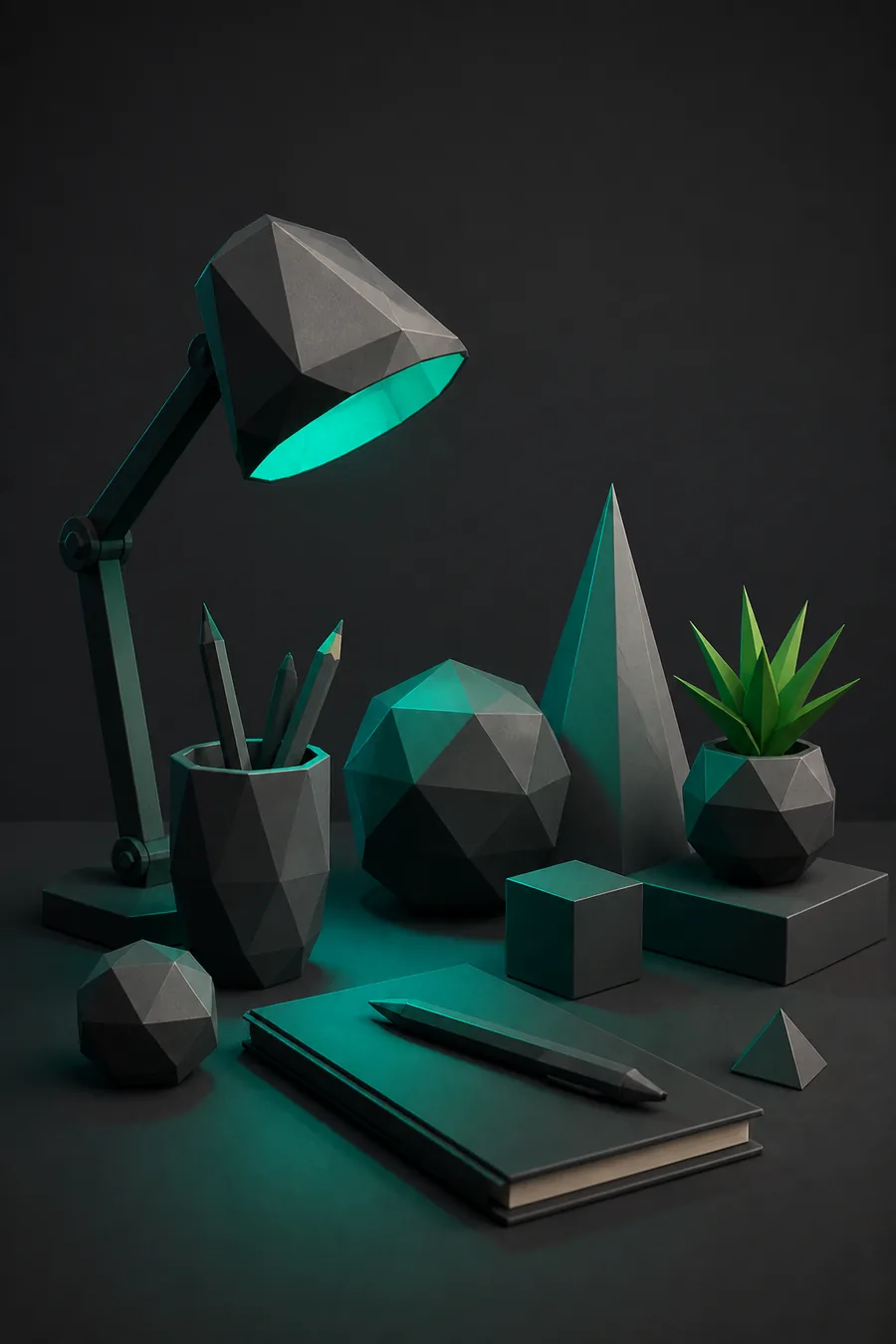
Full mesh editing, no app needed
Box modeling, extrude, bevel, loop cut, and vertex-level control work the same in the browser as they do on mobile. Start from a cube or import a base mesh and shape it your way.
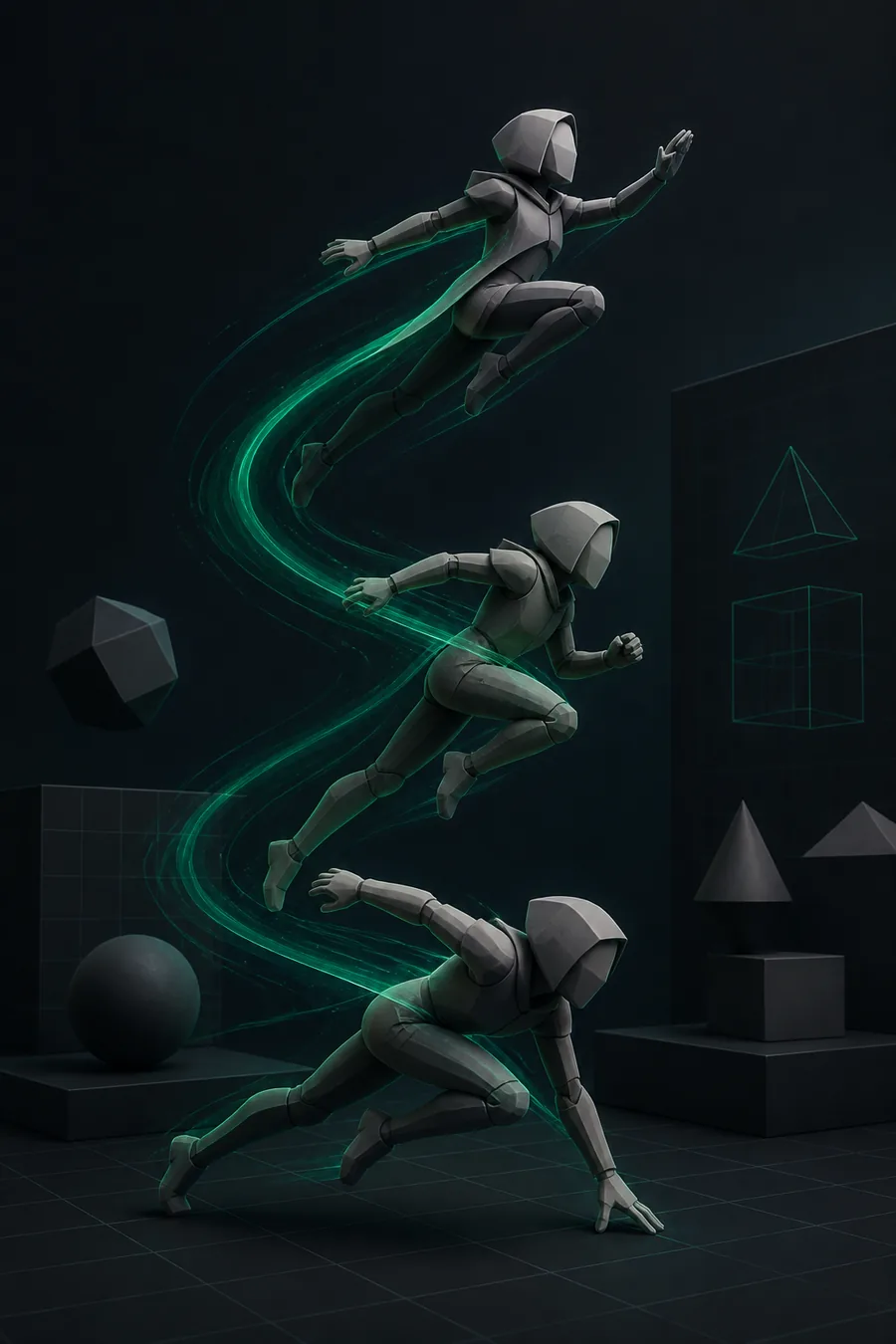
Keyframe animation in a tab
The timeline, dope sheet, and curve editor are all there. Set keyframes, adjust easing, and scrub through your animation — even on a trackpad.
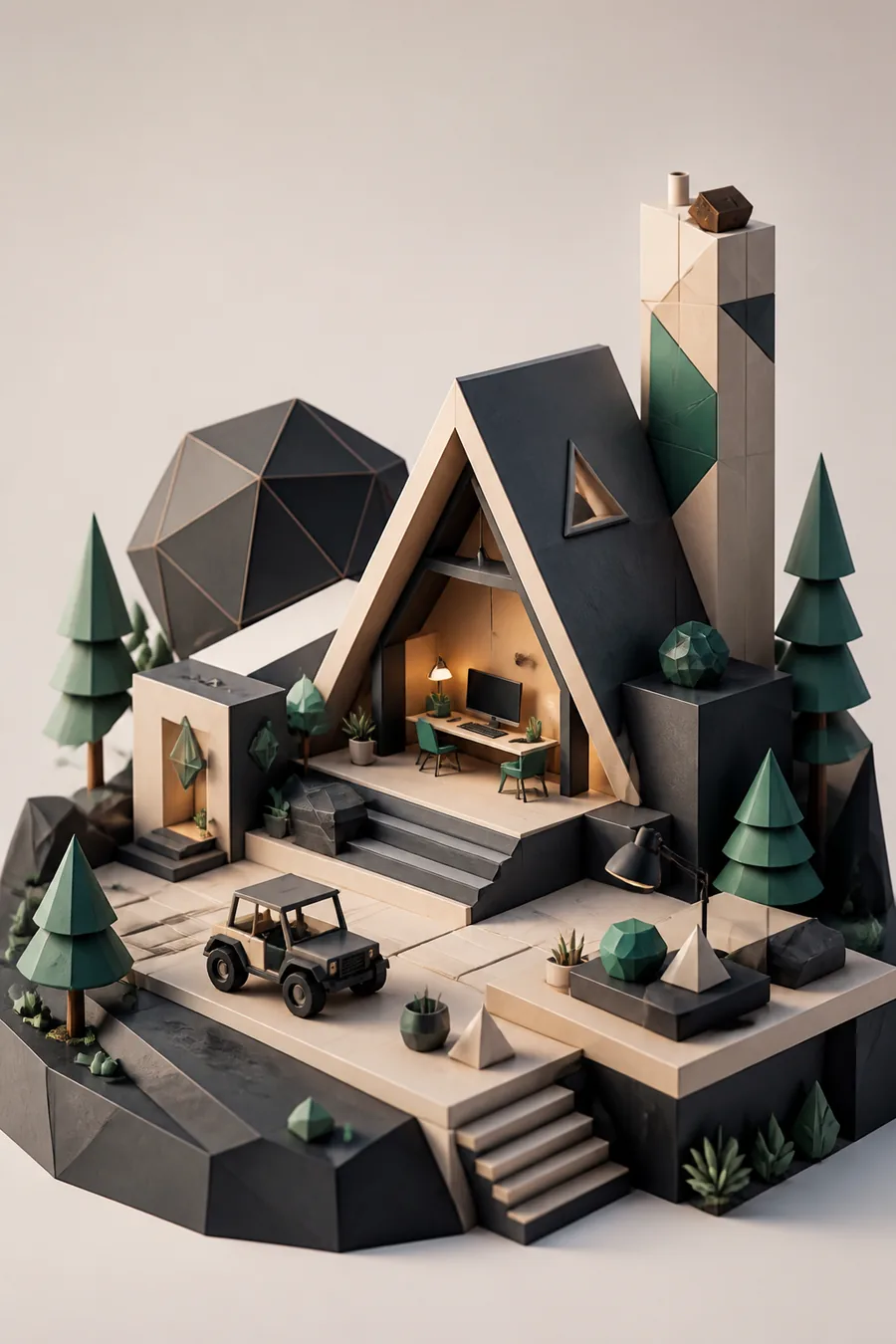
Scene setup and output from the cloud
Lighting, materials, and camera angles are all adjustable. Render frames or short clips and pull the results straight to your machine — no render farm required.
Get started with Prisma3D online in five minutes
Open the editor
Head to the Prisma3D online editor in your browser. It loads in a few seconds — no sign-up wall, no install prompt. If you already use the mobile app, your projects are waiting under the cloud tab.
Start from a template or a blank scene
Pick a starting shape — cube, plane, sphere, or a pre-built template like a character base or a low-poly environment. Templates come with materials and a basic rig already attached.
Build and refine your model
Use the move, rotate, and scale tools to block out the form. Then switch to edit mode for vertex, edge, and face-level adjustments. Your changes save to the cloud automatically as you work.
Animate and set up the shot
Add a rig, pose your model, and drop in keyframes. Adjust the camera angle, place lights, and tweak materials. The viewport previews everything in real time.
Export or share your work
Export as OBJ, GLB, or STL for printing or game engines. Or share a read-only link to the cloud version of your scene — a great way to get feedback without sending files back and forth.
What Prisma3D online can't do (yet)
Frequently asked questions about Prisma3D online
Can you use Prisma3D on PC?
Yes. Prisma3D online runs in any modern browser — Chrome, Edge, Firefox, Safari — on Windows, macOS, and Linux. You don't need to install anything. The online editor is the full Prisma3D toolset, not a stripped-down web demo, so you can model, animate, and render on a desktop or laptop just as you would on your phone.
Is there a difference between the online version and the app?
The core tools are identical — same modeling brushes, same animation timeline, same render output. The main differences are practical: the online version stores your work in the cloud by default, while the app stores on-device unless you turn on cloud saves. Some users find the mouse and keyboard setup more precise on desktop, but artists who've built muscle memory on a touchscreen will feel right at home in the app.
Do I need a powerful computer for Prisma3D online?
Prisma3D online is designed to run on modest hardware. A laptop with 8GB of RAM and integrated graphics will handle most modeling and animation work. Heavier scenes with high-poly meshes, lots of materials, or long animation sequences will benefit from a dedicated GPU. If you're on a Chromebook or an older machine, start with smaller scenes and you'll be fine.
Can I open my existing Prisma3D projects online?
Yes. If you have projects saved in the Prisma3D cloud from the mobile app, they appear in the online editor automatically. You can also import OBJ, GLB, and STL files directly. To move a project from the app to the browser, just make sure it's saved to the cloud — on-device files need to be exported and re-imported.